Free Converter

Free HEIC to PDF Converter

Turn your iPhone photos into print-ready PDFs in seconds — no software to install, everything happens in your browser.

or drop files anywhere on this page

Accepts .heic,.heif · 100% browser-based · No signup needed

100% Private
Instant Conversion
No File Limits
No Signup Needed
Scenarios where HEIC to PDF conversion helps iPhone users

Turn iPhone HEIC Photos into Shareable PDF Files

HEIC is Apple's default camera format since iOS 11 — it packs stunning detail into half the file size of JPEG. The catch: most Windows computers, printers, and document portals have no idea what to do with a .heic file. Converting HEIC to PDF solves this immediately. A PDF opens on every device without any special app, prints exactly as expected, and attaches to email without the recipient needing an iPhone to view it. Whether you're submitting photos for a visa application, printing family portraits, or archiving a property inspection, a HEIC to PDF converter gets your iPhone photos where they need to go. Need to share photos in other formats too? PhotoLab also handles HEIC to JPG, HEIC to PNG, and JPG to PDF conversions — all free, all browser-based.

Print iPhone photos from any printer
Email attachments anyone can open
Submit photos to government portals
Archive memories as multi-page PDF albums
Share real estate or inspection photos
Convert HEIF files from other Apple devices
Convert Now

Convert HEIC to PDF in Three Steps — No App Required

No account creation, no software downloads, no file uploads to a cloud server. The HEIC to PDF conversion runs entirely in your browser using JavaScript on your own machine.
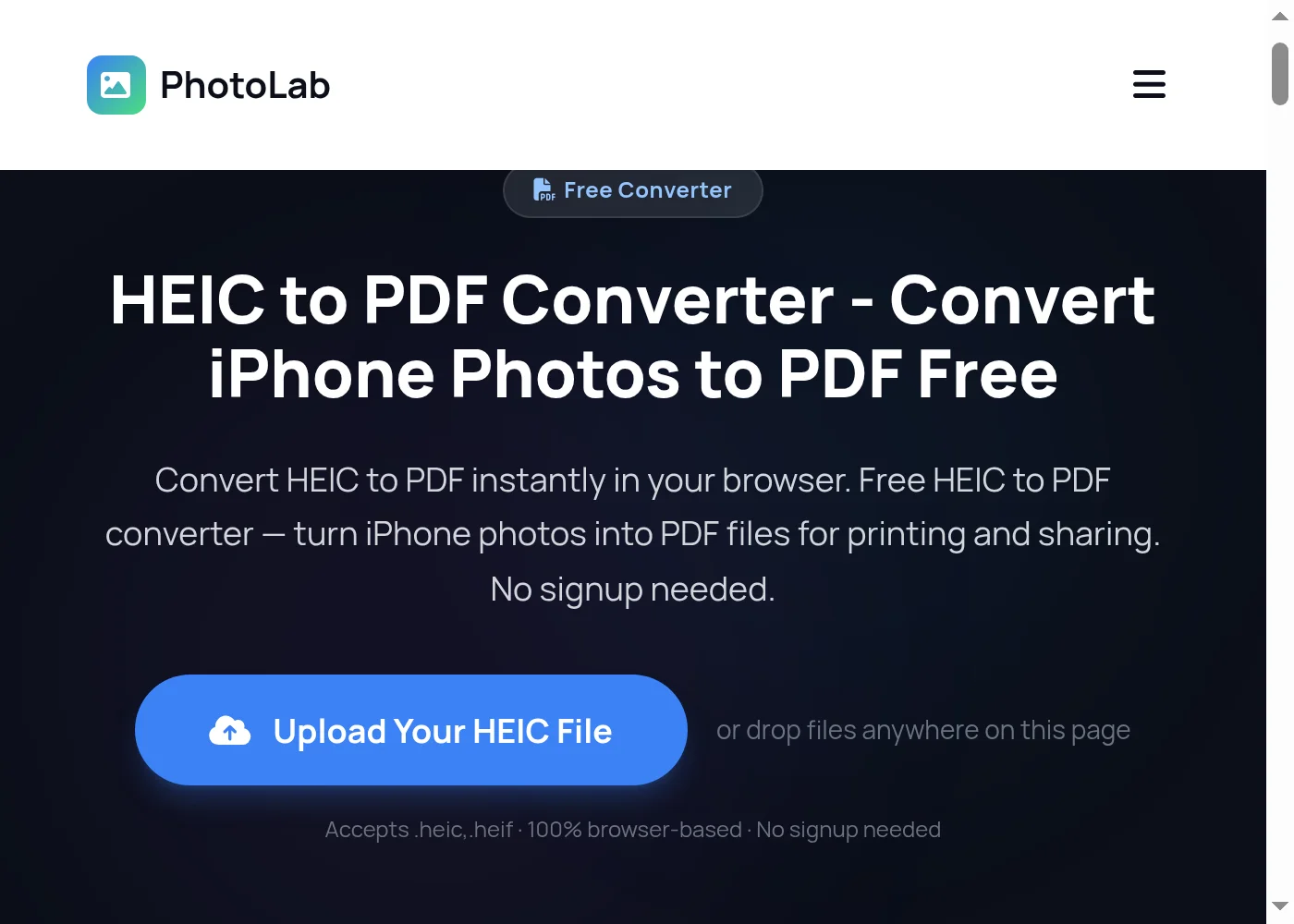
Step by step HEIC to PDF conversion process - Step 1
1

Upload Your HEIC or HEIF File

Open the HEIC to PDF converter page. Drag and drop your HEIC or HEIF photo into the upload area, or click to browse your device and select files manually. You can add multiple HEIC files at once for batch conversion into a single PDF document.
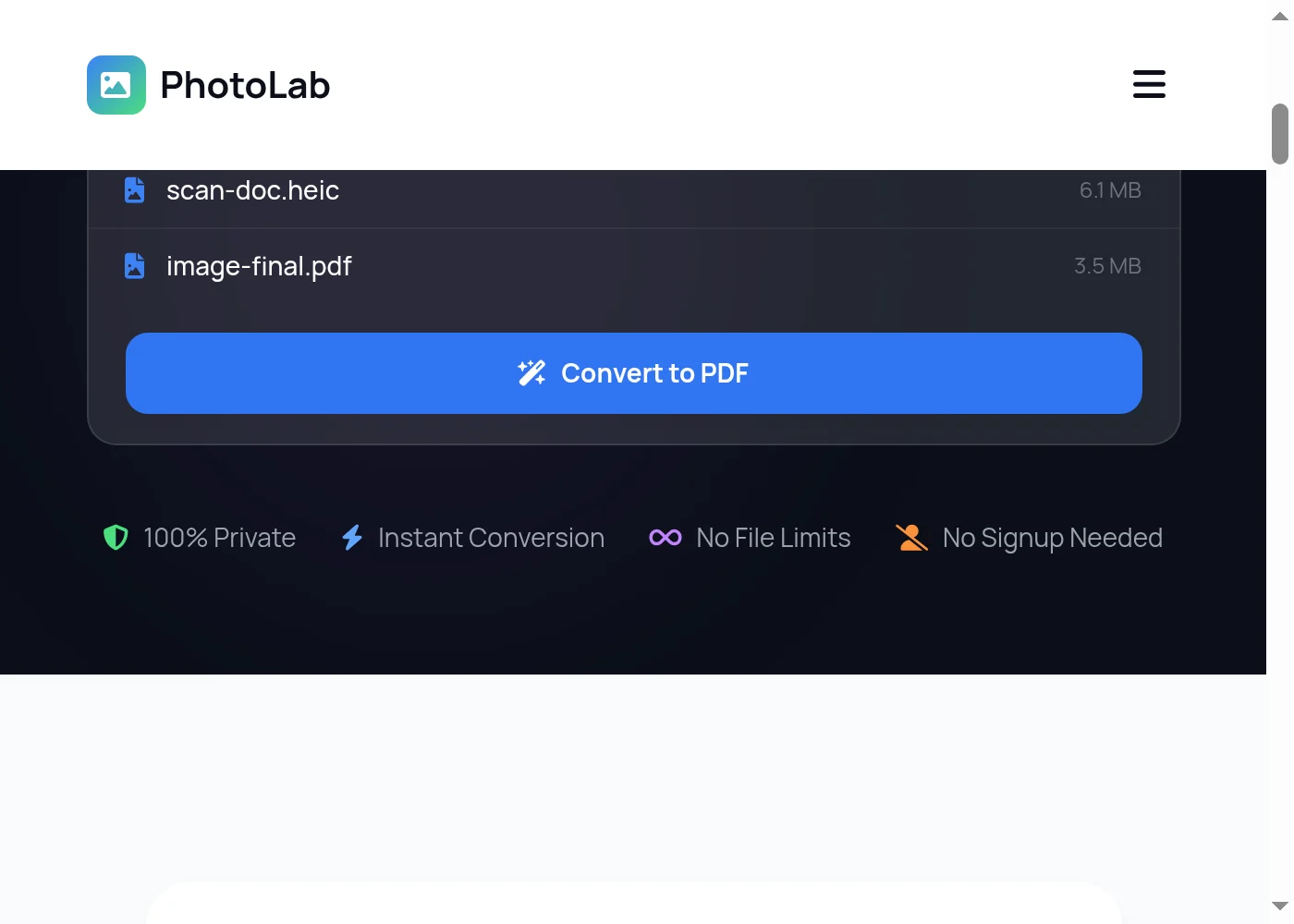
Step by step HEIC to PDF conversion process - Step 2
2

Click Convert to PDF

Press the blue Convert to PDF button. The heic2any library decodes your HEIC image data directly in your browser, then jsPDF assembles the result into a PDF document. Nothing is sent to any server — the entire HEIC to PDF conversion runs locally on your own device.
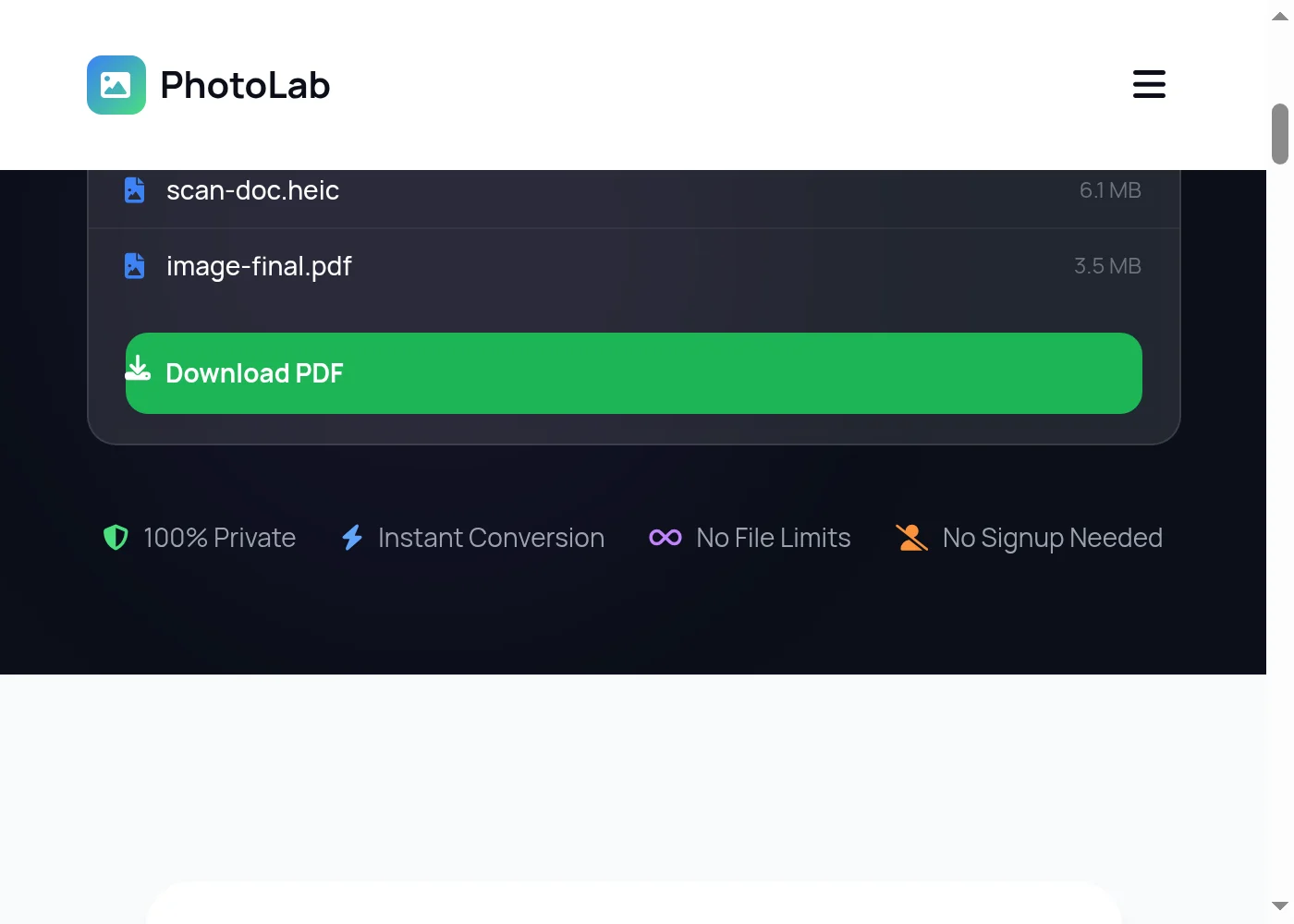
Step by step HEIC to PDF conversion process - Step 3
3

Download Your PDF File

Once the conversion finishes, a green Download button appears. Click it to save your PDF directly to your device. Multiple HEIC photos are combined into one PDF with each photo on its own page — ready to print, archive, or share by email.
HEIC to PDF batch converter features and privacy

Merge Multiple HEIC Photos into One PDF — Instantly

Drop in a batch of iPhone photos and this HEIC to PDF converter combines them all into a single PDF document — each photo gets its own page, in the order you added them. No server processing, no upload queues, no waiting. Your HEIC files never leave your device. The full resolution of each photo is preserved; jsPDF embeds the decoded image at its native dimensions without recompression. This is useful for wedding albums, travel photo journals, property walkthroughs, or any situation where a stack of iPhone shots needs to become a tidy, shareable document. Prefer a different output format? Use our TIFF to PDF converter for scanned documents, or convert your HEIC files directly to web-friendly formats with HEIC to JPG and HEIC to PNG. For older scanned images, the JPG to PDF tool works the same way.

Merge multiple HEIC files into one PDF
100% browser-based — no file uploads
Full resolution preserved on every page
HEIF format supported alongside HEIC
Works on Mac, Windows, iPhone, Android
No file size limits imposed by a server
Convert Your Files — Free

HEIC to PDF — Frequently Asked Questions

How do I convert HEIC to PDF?

Drag your HEIC file into the upload area at the top of this page, then click the Convert to PDF button. The browser decodes the HEIC image using JavaScript and builds a PDF on your device. No uploads, no account — just open the page, drop the file, and download your PDF.

Can I convert multiple HEIC files into one PDF?

Yes. Select multiple HEIC files at once and the HEIC to PDF converter merges them into a single PDF document with each photo on a separate page. The photos appear in the same order you added them. This is ideal for creating photo albums, reports, or multi-page submissions from iPhone photos.

Is it safe to convert HEIC to PDF online?

Yes. PhotoLab uses client-side JavaScript for the entire HEIC to PDF conversion. Your photos never leave your device — there are no uploads to a server and no third-party access to your files. Everything runs locally in your browser, including the heic2any decoding library.

What is HEIC format and why does my iPhone use it?

HEIC stands for High Efficiency Image Container. Apple adopted it as the default iPhone camera format with iOS 11 because it stores photos at roughly half the file size of JPEG with the same or better visual quality. The downside is that non-Apple software often cannot open HEIC files, which is why converting HEIC to PDF or HEIC to JPG is so commonly needed.

What is the difference between HEIC and HEIF?

HEIF is the container format standard; HEIC is the specific variant that uses HEVC (H.265) video compression for still images. In practice the two terms are used interchangeably. Both .heic and .heif files are supported by this converter.

Will converting HEIC to PDF reduce my photo quality?

No. The converter embeds your decoded HEIC photo into the PDF at its original resolution. There is no server-side recompression step because the entire process runs in your browser. The resulting PDF contains your image at full quality, suitable for printing.

Can I convert HEIC to PDF on a Windows PC?

Yes. Windows does not natively support HEIC files, which is exactly why a browser-based HEIC to PDF converter is useful. Open this page in Chrome, Edge, or Firefox on Windows, drop your .heic files, and download the resulting PDF. No Apple software or codec packs needed.

Can I convert HEIC to PDF directly on my iPhone?

Yes. This HEIC to PDF converter works in Safari on iPhone and iPad. Open the page in your mobile browser, tap the upload area to select photos from your Camera Roll, and tap Convert to PDF. The file is processed on your device and saved to your Downloads folder.

Does converting HEIC to PDF require an internet connection?

The page needs to load once to download the JavaScript conversion libraries. After that, the actual HEIC to PDF conversion process runs entirely offline inside your browser. If you lose your connection after the page loads, the converter still works.

How do I send iPhone photos as a PDF by email?

Use this HEIC to PDF converter to turn your iPhone photos into a single PDF file, then attach that PDF to your email. PDF attachments open on every device and email client without any special app. This is much more reliable than attaching raw HEIC files, which many Windows and Android users cannot open.

What other formats can I convert HEIC to?

PhotoLab supports HEIC to JPG for web and social sharing, HEIC to PNG for transparent backgrounds, and this HEIC to PDF converter for documents and printing. Visit the Image Converter hub for the full list of supported format pairs.

Is there a file size limit for the HEIC to PDF converter?

There is no server-imposed size limit because no files are uploaded. Processing happens entirely in your browser. Most HEIC files from iPhone cameras are between 2MB and 6MB and convert instantly. Very large batches may take a few seconds depending on your device's processing speed.

Convert More HEIC Files — Always Free

Drop another file to convert instantly, or explore dozens of other free image and GIF tools on PhotoLab.

Free Online Image Tools →