Free Converter

Free TIFF to GIF Converter

Turn multi-page TIFF files into animated GIFs in one click — no software, no signup, just drop your files.

or drop files anywhere on this page

Accepts .tiff,.tif · 100% browser-based · No signup needed

100% Private
Instant Conversion
No File Limits
No Signup Needed
Use cases for converting TIFF to GIF online — animated GIFs from multi-page TIFFs

Turn TIFF to GIF When You Need Files That Actually Open Everywhere

TIFF is built for precision — lossless compression, high bit depth, and support for multiple pages in a single file. It is the format of choice for scanners, medical imaging, and professional graphics workflows. The problem? Almost nothing outside of those professional tools will open a TIFF without complaint. Email clients block it. Social platforms reject it. Mobile apps have no idea what to do with it. GIF is the opposite. It has been a web standard since the 1980s and it still runs everywhere — browsers, messaging apps, design tools, even old operating systems. When you use this free TIFF to GIF converter, you get a file that opens without friction on any device your recipient is using. The real standout feature here is multi-page TIFF support. A scanned document with 10 pages becomes a 10-frame animated GIF. A microscopy image stack, a medical imaging sequence, a multi-frame export from Photoshop — they all become looping animations in one conversion. Single-page TIFFs produce a clean static GIF. Need to keep full color depth and transparency instead? The TIFF to PNG converter handles lossless output with alpha channel support. For photos that need broad compatibility, the TIFF to JPG converter gives you universally viewable JPEG files.

Multi-page TIFF → animated GIF
Scanned document sequences
Medical and microscopy image stacks
Icons and simple web graphics
Photoshop multi-frame exports
TIFFs for messaging apps and email
Convert Now

How to Convert TIFF to GIF in Seconds — No Software Needed

No account, no software installation, no upload. This TIFF to GIF converter runs entirely in your browser — your files stay on your device from start to finish.

Step-by-step TIFF to GIF conversion guide - Step 1
1

Upload Your TIFF File to the TIFF to GIF Converter

Drag and drop your TIFF or TIF file onto the upload area, or click Convert Now to browse your files. The TIFF to GIF converter accepts both .tiff and .tif formats. Drop multiple files at once if you want to batch convert.
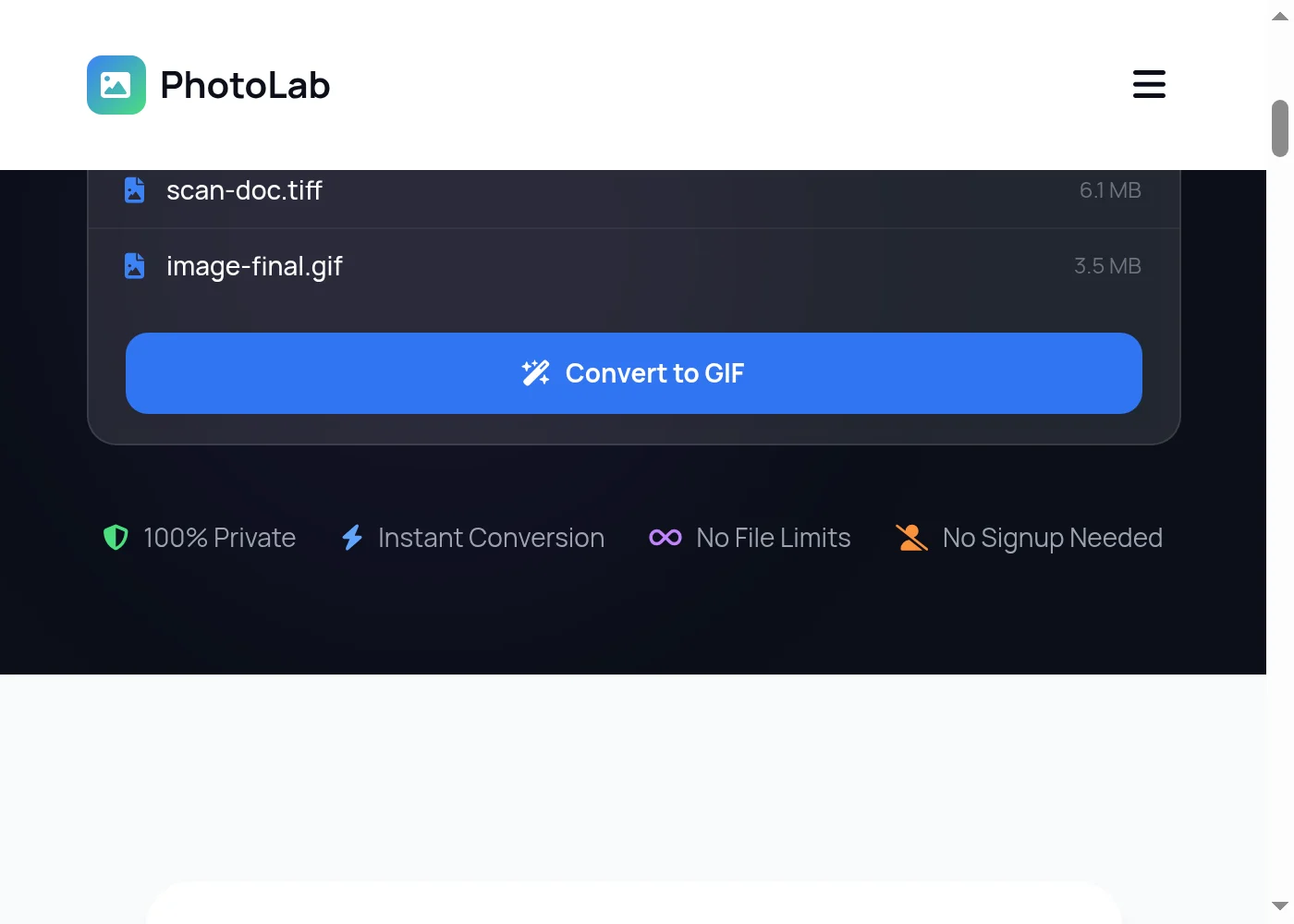
You can drag files from anywhere on your screen — even directly from your desktop or file manager.
Step-by-step TIFF to GIF conversion guide - Step 2
2

Convert TIFF to GIF in Your Browser

Click the Convert button. The TIFF to GIF converter decodes every page in your file and assembles them into a single animated GIF, with each TIFF page becoming one animation frame. Single-page TIFFs produce a standard static GIF. Everything runs locally — no upload happens.
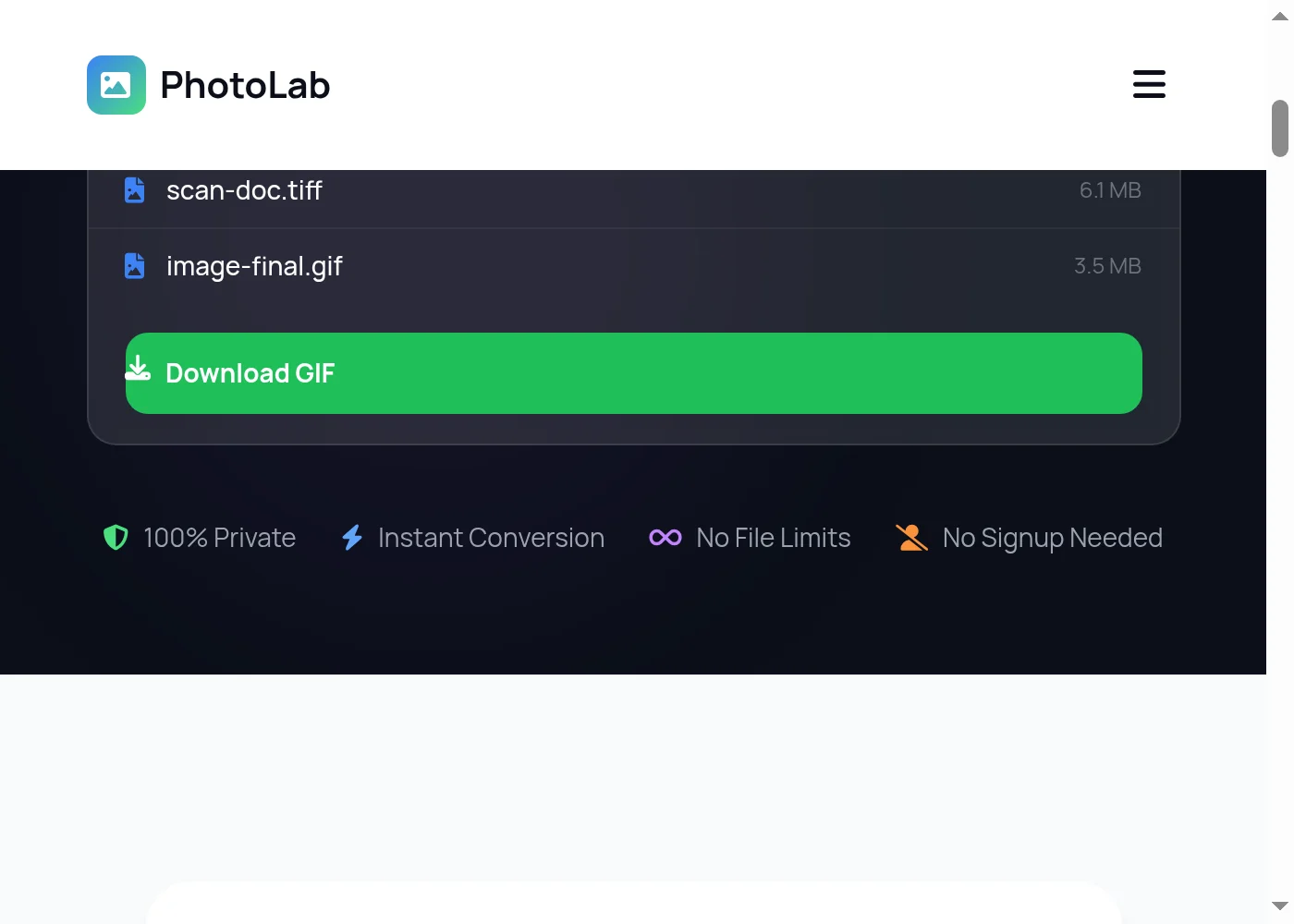
Multi-page TIFFs with many pages will take a few extra seconds — the browser is building the full animation frame by frame.
Step-by-step TIFF to GIF conversion guide - Step 3
3

Download Your GIF File

Once conversion finishes, click Download. Your GIF is ready. If you converted multiple TIFF files, each one gets its own GIF — download them individually or grab them all at once. Nothing is stored on any server; the file comes straight from your browser.

TIFF to GIF converter features — animated GIF output, privacy, batch conversion

Get Animated GIF Output Every Time You Convert TIFF to GIF

This TIFF to GIF converter processes everything 100% in your browser using JavaScript. No file ever reaches a server. No account is created. Nothing is tracked. Your TIFFs stay private — the moment you close the tab, everything is gone. Multi-page TIFFs are the headline feature. Each page becomes its own animation frame in the output GIF. The converter builds the animation automatically, cycling through pages in order. Scanned instruction sheets, document archives, frame sequences — they all come out as smooth looping GIFs ready to drop into any website or chat. Single-page files produce a standard static GIF, which is lighter than PNG for images using a limited color palette. Batch mode lets you queue up multiple TIFF or TIF files and convert them all in one session, each producing its own downloadable GIF. The TIFF to GIF converter handles both .tiff and .tif extensions — they are the same format, just named differently. Files from flatbed scanners, DSLR raw processors, Photoshop, and medical imaging systems all decode correctly. For documents that need to stay crisp and multi-page in a single file, the TIFF to PDF converter is the better choice. Need compressed web images that go beyond GIF color limits? The TIFF to WebP converter delivers smaller files with full color. And the image converter hub covers dozens more TIFF output formats.

Multi-page TIFF → animated GIF frames
100% browser-based — no uploads
Batch TIFF to GIF conversion
Single-page TIFFs → static GIF
Works on phone, tablet, desktop
No file size limits, no signup
Convert Your Files — Free

TIFF to GIF — Frequently Asked Questions

How do I convert TIFF to GIF for free?

Use the free TIFF to GIF converter at the top of this page. Drag your TIFF or TIF file onto the upload area, or click Convert Now to pick files from your device. Hit the Convert button, then download your GIF when it finishes. No account, no payment, no signup required — the TIFF to GIF converter is completely free.

Can this TIFF to GIF converter create animated GIFs from multi-page TIFFs?

Yes — that is one of the core features. If your TIFF file contains multiple pages (common with scanned documents, medical image stacks, and Photoshop exports), the TIFF to GIF converter turns each page into an animation frame. The result is a looping animated GIF with every page from the original TIFF file playing in sequence.

What happens when I convert a single-page TIFF to GIF?

A single-page TIFF produces a standard static GIF — one frame, no animation. The output is a valid GIF file that opens in any browser, image viewer, or app that supports the format. Static GIF is useful for simple graphics, icons, and logos where you need broad compatibility without the file size of PNG.

Is the TIFF to GIF converter safe to use?

Yes. The TIFF to GIF converter runs entirely in your browser using JavaScript — your files are never uploaded to any server and never stored anywhere outside your own device. Everything processes locally. Close the tab when you're done and nothing remains. Your TIFF files stay completely private. This makes the free TIFF to GIF converter a trustworthy choice for sensitive documents, medical images, or any file you'd rather not hand over to a third-party cloud service.

Can I batch convert multiple TIF files to GIF at once?

Yes. Select or drop multiple TIFF or TIF files at once and each one converts to its own GIF. You can download them individually after conversion finishes. Batch conversion saves time when you have a folder of TIFFs that all need to become GIF format.

How many frames can a GIF made from a multi-page TIFF have?

Technically there is no hard limit on GIF frames — the converter will process however many pages your TIFF file contains. Keep in mind that GIF files with many frames get large quickly, and very long animations can be slow to render in the browser. For TIFFs with dozens of pages, consider splitting the conversion into smaller batches.

Does converting TIFF to GIF lose quality?

GIF is limited to a 256-color palette, so photographic TIFFs with millions of colors will look visibly different as GIFs — dithering and color banding are expected. For simple graphics, line art, and images that already use few colors, the output looks fine. If you need to preserve full color quality, use the <a href='/tiff-to-png/' class='text-accentBlue hover:underline font-semibold'>TIFF to PNG converter</a> instead — PNG is lossless with no color limit.

Can I convert TIFF to GIF on iPhone or Android?

Yes. The TIFF to GIF converter works on any device with a modern browser — iPhone, iPad, Android phone or tablet, or desktop. No app installation needed. Open the page in Chrome or Safari, drop your TIFF file onto the upload area, and download your GIF when done.

What is the difference between TIF and TIFF?

TIF and TIFF are the same image format. TIF is simply the three-character file extension used on older Windows systems that required short filenames. Both .tif and .tiff files contain identical data and work the same way in this TIFF to GIF converter.

Why use GIF instead of PNG or JPG for my converted TIFF file?

GIF is the only standard web format that supports animation — that is the main reason to use the TIFF to GIF converter for multi-page TIFFs. GIF also has near-universal support and works in contexts where PNG or WebP may not render (older email clients, certain apps). For static images where quality matters more than compatibility, PNG or JPG are better choices.

Does the TIFF to GIF converter work offline?

Once the page has fully loaded in your browser, the actual TIFF to GIF conversion does not need an internet connection — all processing runs locally on your device. You need internet access for the initial page load, which downloads the conversion scripts. After that, you can disconnect and keep converting.

What should I look for in a free TIFF to GIF converter?

A good TIFF to GIF converter should handle multi-page TIFFs and produce animated GIFs from them, run locally without uploading your files, and work across devices without requiring software installation. This free TIFF to GIF converter does all of that — no signup, no upload, no waiting in a processing queue. It also accepts both .tiff and .tif file extensions and supports batch conversion, so you can process multiple files in one session.

Convert More TIFF Files — Always Free

Drop another file to convert instantly, or explore dozens of other free image and GIF tools on PhotoLab.

Free Online Image Tools →